
Knowledge base
Pad Link 2 — User Manual
Installation, operation and maintenance manual for the Pad Link 2 LED poster.
01 Introduction
Thank you for choosing the Artixium Pad Link 2 LED poster. This product is designed to deliver high-quality visual performance, reliability, and flexibility for a wide range of indoor display applications, including retail, exhibitions, events, and dynamic advertising.
This guide provides the essential information required to safely install, operate, and maintain your Pad Link 2 system. It covers unpacking, mounting, electrical connections, configuration, daily operation, maintenance, and troubleshooting. Please read this manual carefully before use to ensure optimal performance and to prevent damage or injury.
02 Safety & Handling
⚠ Warning — Read Before Installation
To ensure safe operation and long-term reliability of your Artixium Pad Link 2 cabinets, carefully follow the instructions below. Failure to comply may result in equipment damage, reduced performance, or personal injury.
2.1 General Safety Precautions

Installation, operation, and servicing must be carried out by qualified personnel only.
Do not open or disassemble the cabinet unless explicitly instructed by Artixium.
Always disconnect the power supply before performing maintenance or replacing modules.
Use only Artixium-approved components, accessories, and spare parts.
2.2 Electrical Safety
Verify that input voltage and frequency comply with the product label: AC 100–240 V, 50/60 Hz.
Ensure the system is properly grounded at all times.
Do not operate the cabinet if power cables or connectors are damaged.
Use appropriate protection devices such as circuit breakers and fuses.
All electrical installations must comply with local regulations and standards.
2.3 Handling & Transport

Handle cabinets with care to avoid shocks, drops, or excessive vibration.
Use appropriate lifting equipment or sufficient personnel — each cabinet weighs 30 kg.
Do not stack or place heavy objects on top of the cabinets.
Whenever possible, use the original Artixium flight cases for transport and storage.
2.4 Installation Environment

Install in a clean, dry, and well-ventilated environment.
Ambient temperature must remain within −20 °C to +50 °C.
Humidity must remain within 10% to 90%.
Keep the cabinets away from water, dust, and corrosive substances. The Pad Link 2 is rated IP65 (front) / IP20 (back) — indoor use only.
Maintain sufficient airflow around the cabinets to prevent overheating.
2.5 Maintenance & Service

Regularly inspect cables, connectors, and LED modules for any signs of damage or wear.
Replace defective components promptly using Artixium-approved spare parts.
For repairs, follow the Artixium RMA procedure and contact your sales representative.
Unauthorized repairs or modifications may void the warranty.
03 Product Overview
3.1 Product Description
The Pad Link 2 pushes the boundaries of LED display technology by combining the visual precision of the Pad 2.0 with the versatility of the Pad Link. Its HOB (Hot Melt on Board) surface treatment ensures enhanced protection and outstanding visual uniformity, while fine pixel pitches of 1.95 mm and 2.60 mm deliver exceptional image clarity.
Thanks to its ingenious articulation and connection systems, the Pad Link 2 easily adapts to any environment — from retail spaces and exhibitions to events and dynamic advertising.
3.2 Dimensions
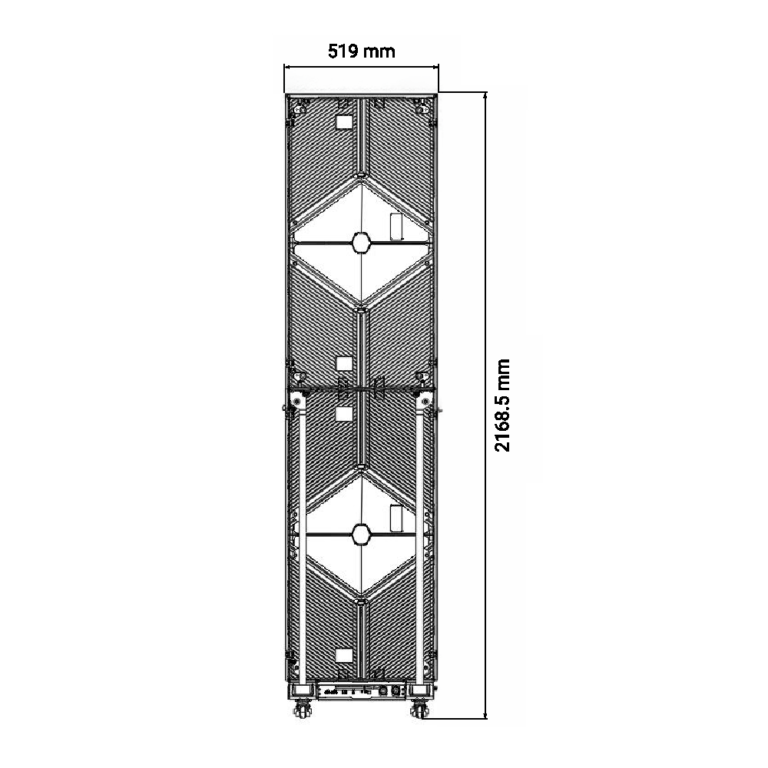
3.3 Key Features
Articulation — folds in half forward for easier transport, or backward to create a dual 500 × 1000 mm display.
Assembly — multiple units connect side by side via integrated locking systems and precise level adjustment for fast, stable, perfectly aligned setup.
HOB technology — Hot Melt on Board encapsulation offers greater durability than GOB, with enhanced protection against impacts and moisture while maintaining excellent visual clarity.
Front maintenance — vacuum tool removes each module within seconds, no rear access required.
Fine pixel pitch — P1.9 (1.95 mm) and P2.6 (2.60 mm) for sharp visuals at close viewing distances.
High brightness — up to 1000 nits at 5 V for indoor environments with strong visual requirements.
3.4 Main Components
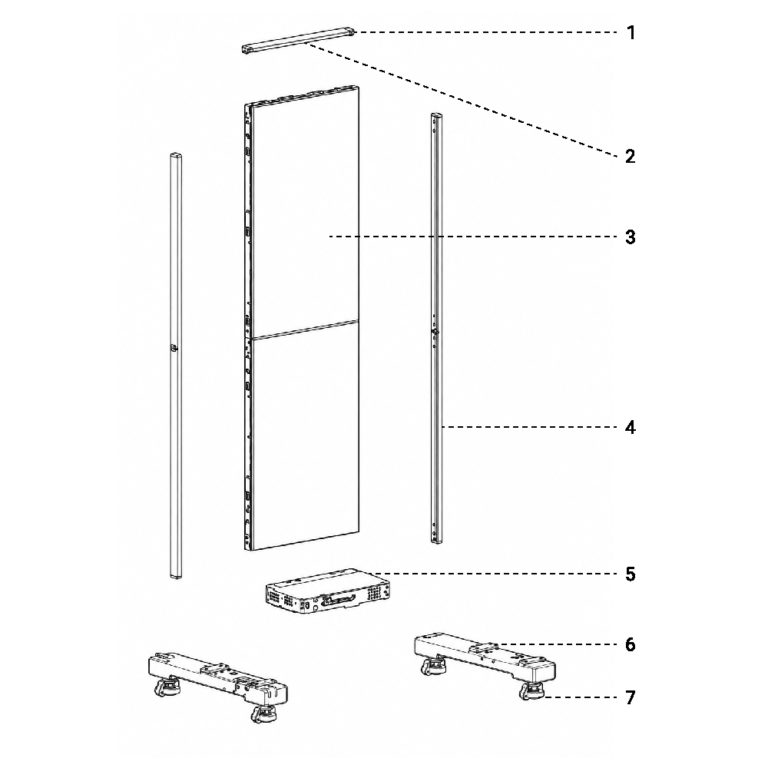
3.5 Intended Use
Retail advertising and in-store displays
Trade shows and exhibitions
Corporate and brand communication
Temporary or mobile LED installations
Modular video wall setups
04 Unpacking & Inspection
This chapter explains how to safely unpack your Pad Link 2 units and verify that all components are present and in good condition before installation.
4.1 Receiving the Shipment
Upon delivery, carefully inspect the packaging before signing the receipt.
Check for visible damage (impact, moisture, deformation).
If damage is observed, clearly note it on the delivery document before acceptance.
Notify Artixium or your distributor immediately in case of any issues.
4.2 Unpacking Procedure
Place the flight case or packaging on a stable, flat surface.
Open the case using the designated locking mechanisms.
Carefully remove the LED cabinet using appropriate lifting support or two-person handling.
Avoid dragging or placing pressure on the LED surface.
4.3 Package Contents
Each Pad Link 2 shipment typically includes:
LED cabinet(s)
Power and signal cables (as configured per order)
Quick-lock or connection accessories (if applicable)
User documentation / quick start guide
Spare parts (if included in the order)
Note
The exact contents may vary depending on project configuration.
4.4 Visual Inspection
After unpacking, perform a full inspection of each cabinet:
Check the LED surface for dead pixels, scratches, or damage.
Verify cabinet frame integrity (no deformation or cracks).
Inspect connectors (power, data, and mechanical locks).
Ensure all modules are properly seated and secured.
4.5 Action in Case of Issues
If a Defect or Missing Component Is Found
Do not install or power on the unit.
Take clear photos of the issue and packaging.
Contact your Artixium representative with serial numbers and details.
Follow the official RMA procedure if replacement or repair is required.
05 Installation
The Pad Link 2 is designed for both floor-based mobile deployment (using its integrated wheels) and hanging (rigged) installation, offering maximum flexibility for rental and fixed-use applications.
5.1 Installation Requirements
The installation area is flat, stable, and safe for operation.
The structure (floor or rigging) can support the total system weight (30 kg per device).
All locking, safety, and connection accessories are available.
Installation is carried out by qualified personnel only.
Power and signal distribution are prepared in advance.
5.2 Required Tools
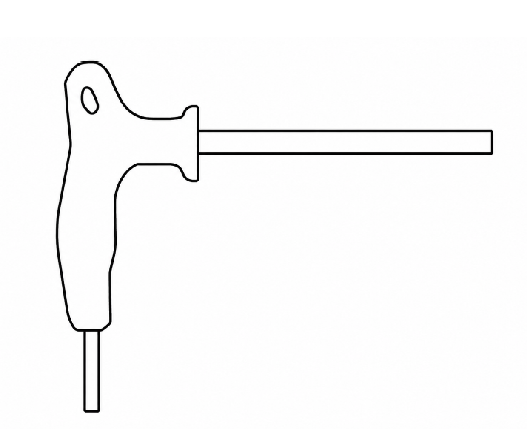
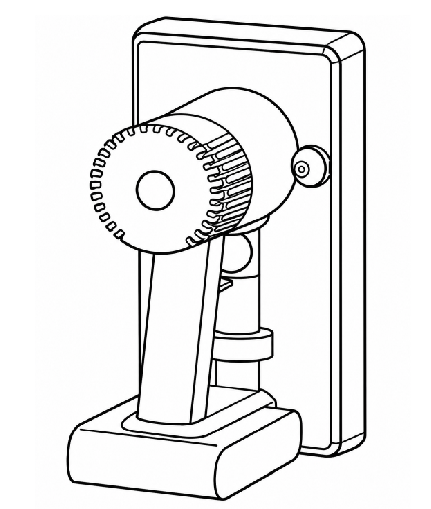
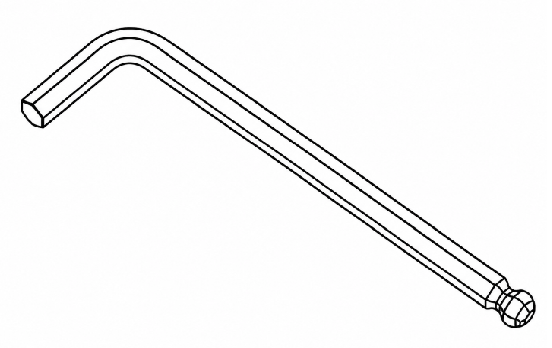
5.3 Floor Installation (Wheeled Configuration)
The Pad Link 2 can be deployed quickly on the floor using its integrated transport wheels.
Position the cabinet(s) on a flat and even surface.
Lock the wheels once the unit is in its final position to prevent movement.
Align the first cabinet carefully — it defines the reference for the full screen.
Connect additional cabinets side by side using the mechanical locking system.
Check alignment after each addition to maintain a straight and level surface.
⚠ Always lock the wheels before powering or operating the display.
5.4 Assembly Steps
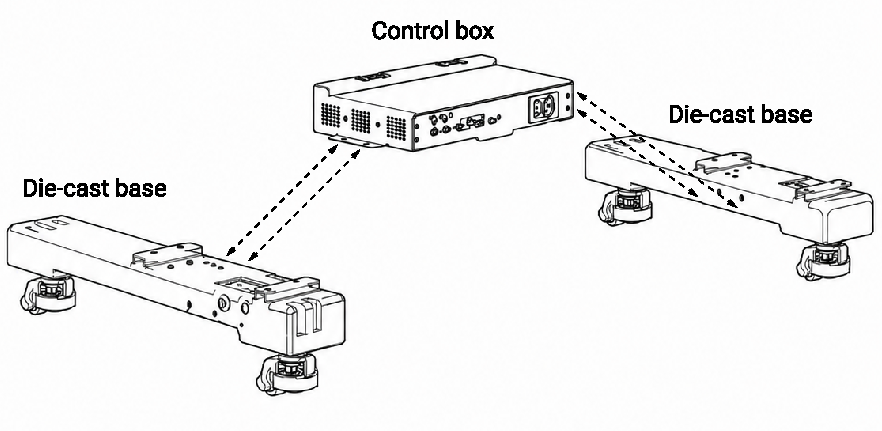
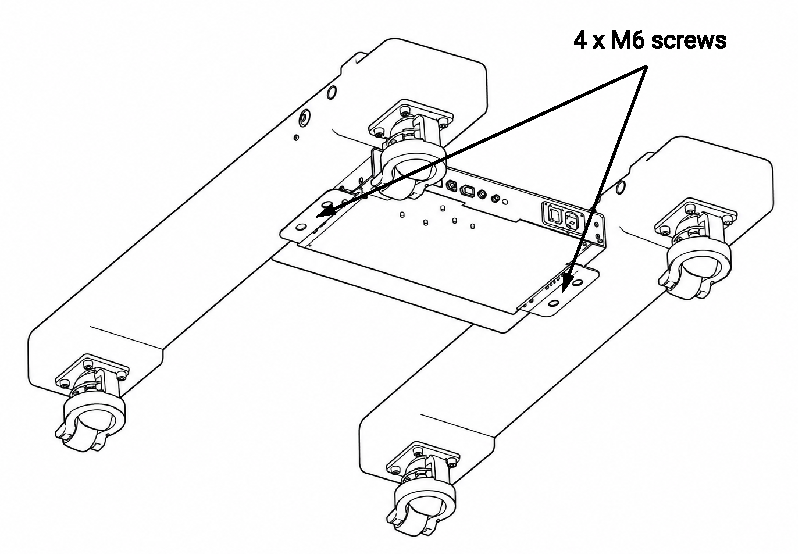
Step 1 — Mount the Control Box to the Die-Cast Base
Connect the die-cast base to the control system box. Securely tighten the four M6 screws at the bottom of the controller.
Step 2 — Stack and Secure the Cabinets
Align the screw holes of the bottom cabinet with the base, then use a wrench to secure the screws connecting the cabinet to the die-cast base beam. Repeat for cabinet-to-cabinet connections when splicing multiple units vertically.
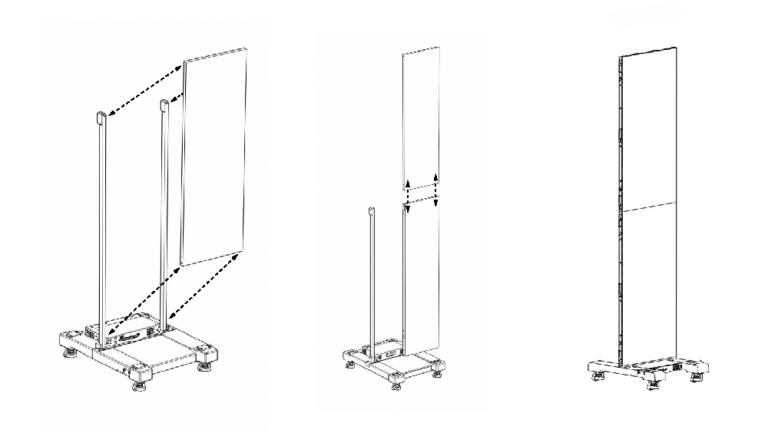
Step 3 — Install Trim Strips
After securing the cabinet(s), install the trim strips (top, sides, and corner bezels) to complete the assembly.
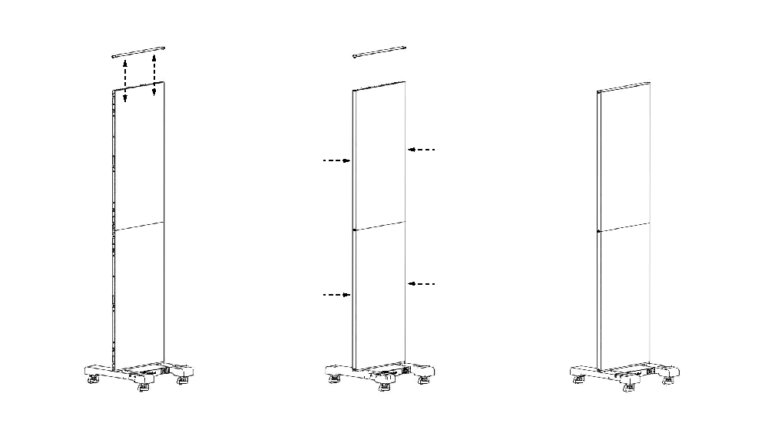
5.5 Hanging Installation (Rigging Mode)
The Pad Link 2 can also be installed in a suspended configuration using certified rigging systems.
Use only approved rigging structures rated for LED display loads.
Attach cabinets exclusively via designated rigging points.
Ensure all safety pins, locks, and secondary safety cables are properly installed.
Lift cabinets gradually using appropriate hoisting equipment.
Verify load distribution across the rigging structure before full release.
⚠ Never install or operate the system without proper secondary safety measures.
5.6 Cabinet-to-Cabinet Connection
Regardless of installation type:
Align cabinets precisely before locking.
Engage mechanical connectors progressively (top, bottom, and/or side depending on configuration).
Avoid forcing connections — adjust alignment if resistance occurs.
Ensure all locks are fully secured before powering the system.
5.7 Final Positioning and Stability Check
Verify overall screen alignment and flatness.
Check that all wheels are locked or rigging points secured.
Confirm there is no movement or structural instability.
Ensure consistent spacing and seamless panel connection.
06 Electrical Connections
Correct wiring is essential to ensure stable operation, image quality, and safety. The Pad Link 2 operates on AC 100–240V, 50/60 Hz, with a maximum draw of 540 W per poster (average 180 W).
6.1 General Electrical Safety
Before Making Any Connections
Ensure all cabinets are powered OFF.
Disconnect power sources before handling cables.
Use only certified and properly rated cables.
Verify that grounding is correctly installed.
All electrical work must be performed by qualified personnel.
6.2 Power Connection
Each Pad Link 2 cabinet is equipped with a power input and output system designed for daisy-chaining.
Power Input
Connect the main power cable to the designated power IN connector.
Ensure the connector is fully locked and secured.
Verify that the input voltage matches the product specifications.
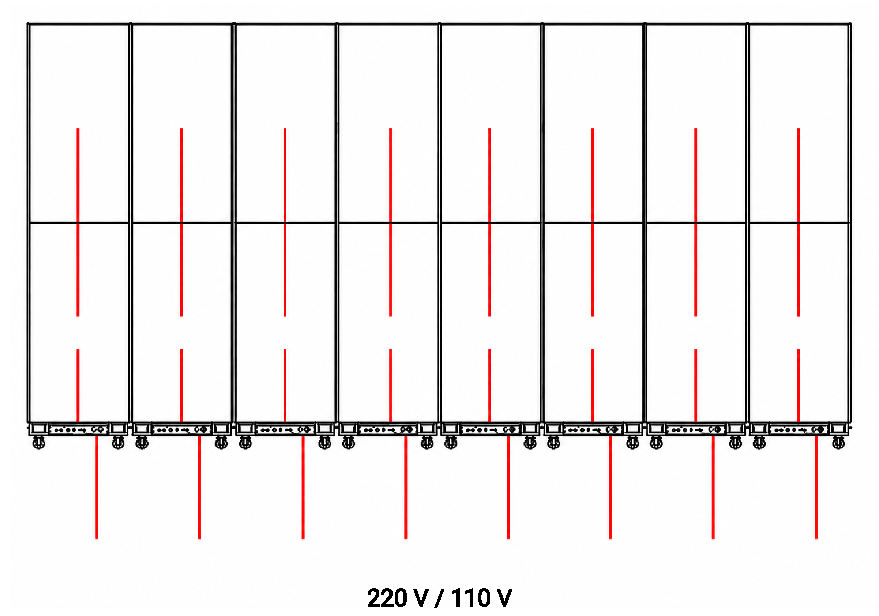
Power Output (Daisy Chain)
Use the power OUT connector to link additional cabinets.
Distribute power load evenly across circuits.
Do not exceed the maximum number of cabinets per power line as defined below.
Power Daisy-Chain Limits
220 V: supports up to 6 units per chain.
110 V: supports up to 3 units per chain.
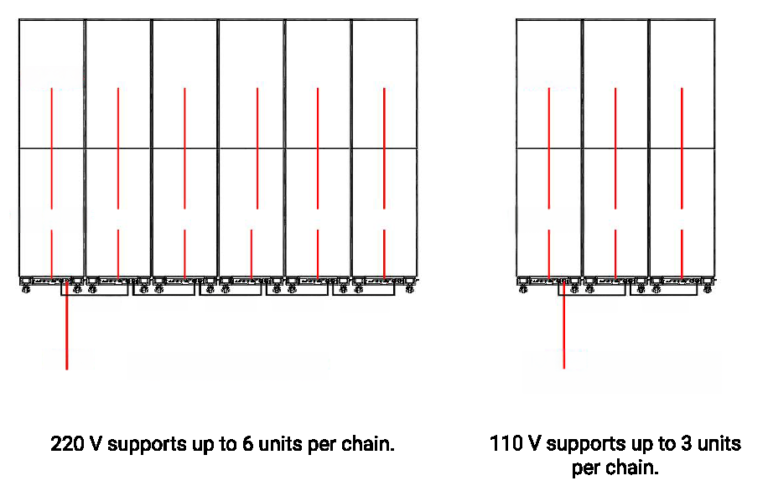
Overloading a power line may cause system failure or safety hazards.
6.3 Signal (Data) Connection
The Pad Link 2 uses a standard LED control system with sending and receiving devices.
Data Input
Connect the data cable from the LED sending card or controller to the first cabinet.
Ensure correct orientation of IN/OUT ports.
Data Output (Daisy Chain)
Connect the DATA OUT of one cabinet to the DATA IN of the next.
Continue this chain until all cabinets are connected.
Follow the pre-defined screen layout to ensure correct signal mapping.
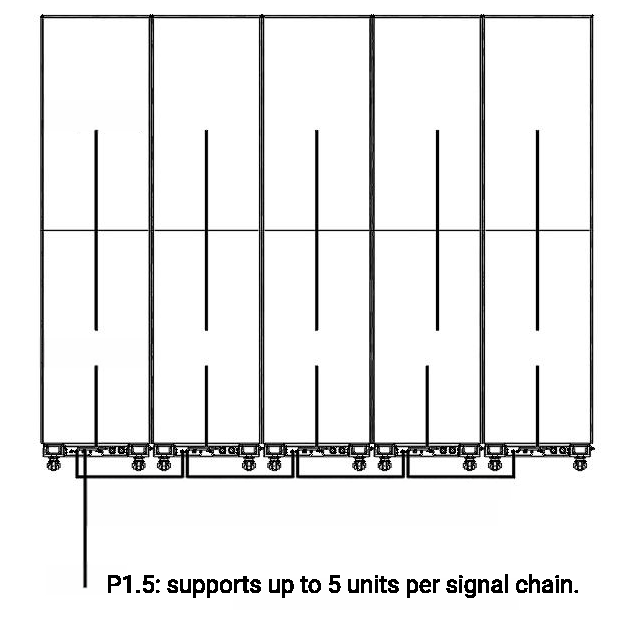
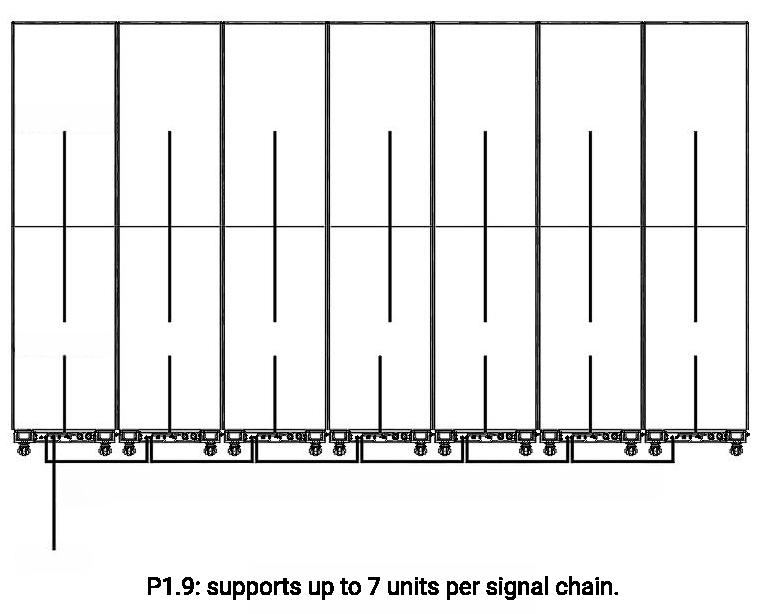
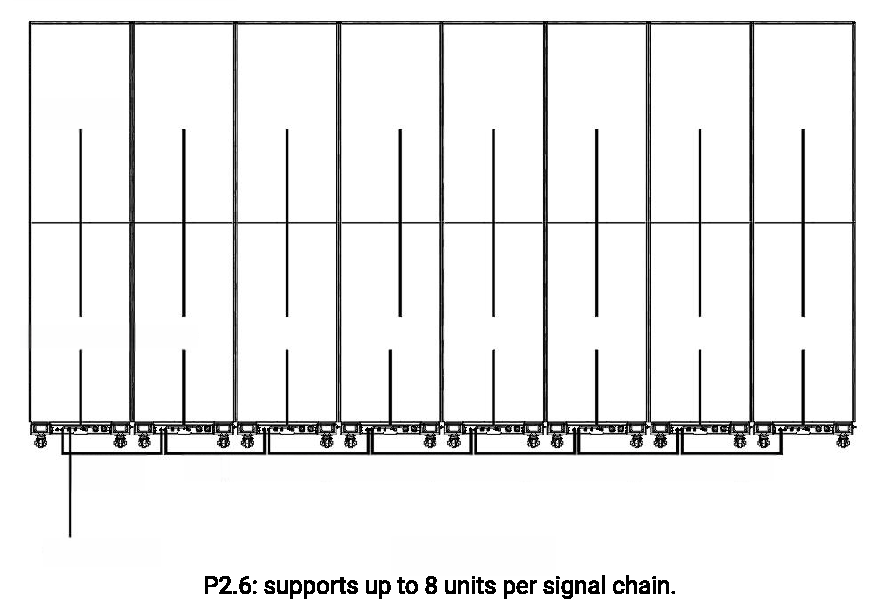
Signal Daisy-Chain Limits
P1.5: supports up to 5 units per signal chain.
P1.9: supports up to 7 units per signal chain.
P2.6: supports up to 8 units per signal chain.
6.4 System Topology
A typical configuration follows this structure:
Sending system (PC + sending card / processor)
First LED cabinet (signal entry point)
Daisy-chained cabinets in sequence
Termination at last cabinet (if required by configuration)
6.5 Cable Management
Keep power and data cables separated where possible.
Avoid tight bends or cable stress.
Secure all cables to prevent accidental disconnection.
Ensure cables do not interfere with moving parts (especially in wheeled setups).
Use proper cable routing in rigged installations.
6.6 Power-On Verification
Double-check all power and data connections.
Ensure all locks and connectors are fully engaged.
Power on the system gradually (line by line if possible).
Verify that all cabinets receive signal correctly.
Check for any display abnormalities before full operation.
07 System Setup & Configuration
7.1 System Overview
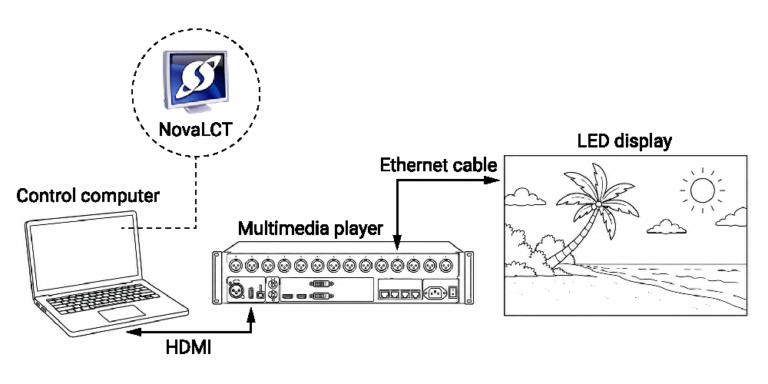
Each Pad Link 2 cabinet operates in synchronization control mode and supports multiple input types — USB, HDMI, RJ45, Wi-Fi, and 4G — giving you flexible options for content delivery.
7.2 Powering Up the System
Ensure all power and signal connections are correctly installed.
Connect the main power supply.
Turn on the cabinets using the main power switch.
Wait for the system to complete automatic initialization.
⚠ Always ensure stable power before switching on the system.
7.3 Connection Methods
Direct Network Cable Connection
Open DHCP on the Viplex Express software and select the network card. After confirmation, refresh the asynchronous device.
Wi-Fi Connection
Connect to the device's Wi-Fi access point. The default SSID begins with AP followed by a numeric identifier (e.g. AP10001066). Default password: SN2008@+.
7.4 Screen Configuration with NovaLCT
Use NovaLCT to connect the control PC to the sending card, load the Artixium configuration file, and verify the receiving card mapping before final operation.
Step 1 — Connect the PC to the Sending Card
Connect the PC running NovaLCT to the sending card using a USB cable or a network control cable. Make sure the sending card and the LED display are powered on.
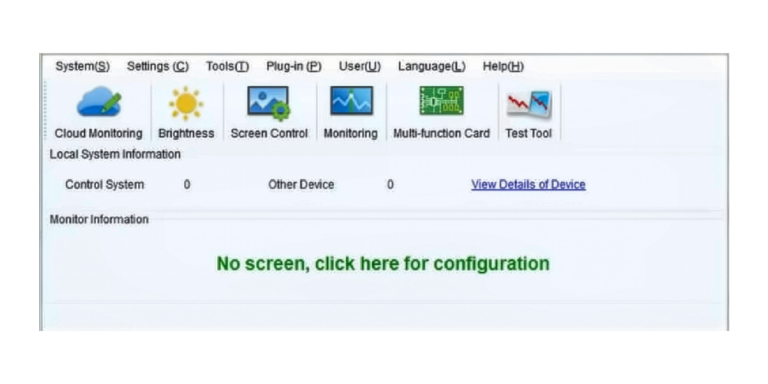
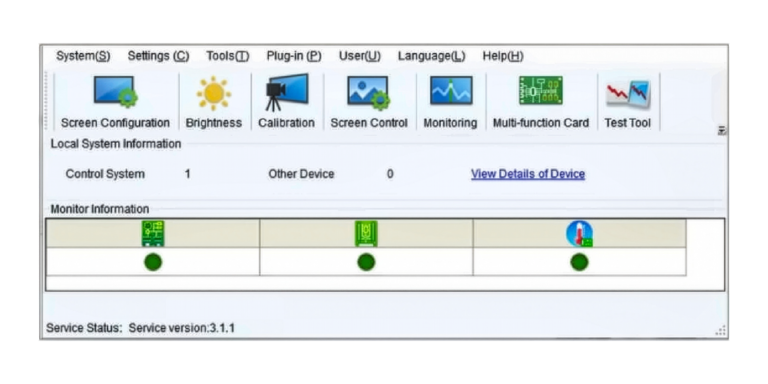
Open NovaLCT. If the connection is correct, the software detects the sending card automatically: the number of Control Systems changes to 1 and the monitor indicators turn green.
Click View Details of Device to check the communication information. This window allows you to identify the active port, the IP address or USB connection, the device name, the quantity of devices, and the SN of the sending card. This is especially important when several sending cards are connected.
Step 2 — Load the Artixium Configuration File
When an Artixium configuration file is available, use it before attempting any manual setup.
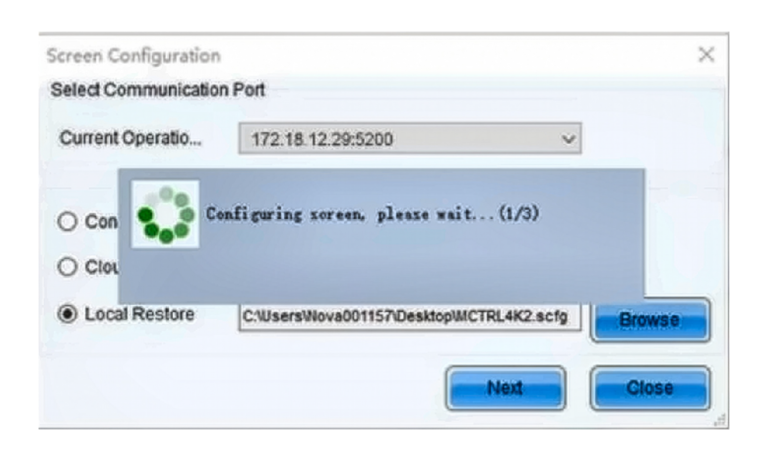
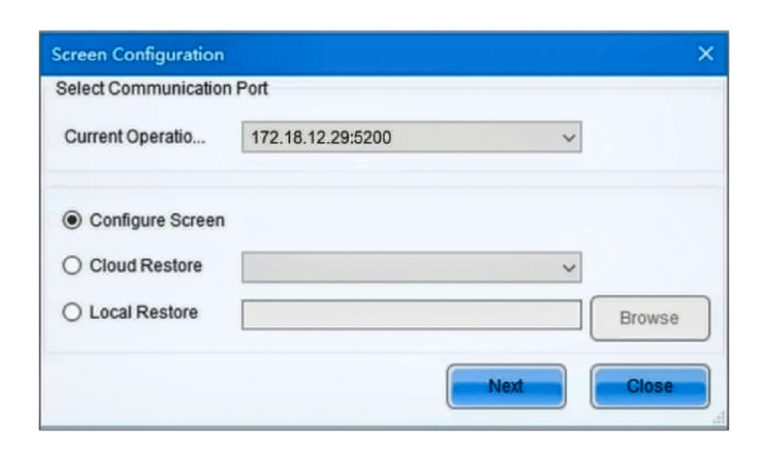
Open Screen Configuration, select the correct communication port, then choose Local Restore. Click Browse, select the supplied .scfg file, and click Next. Wait until the configuration has been loaded into NovaLCT.
Step 3 — Configure the Sending Card
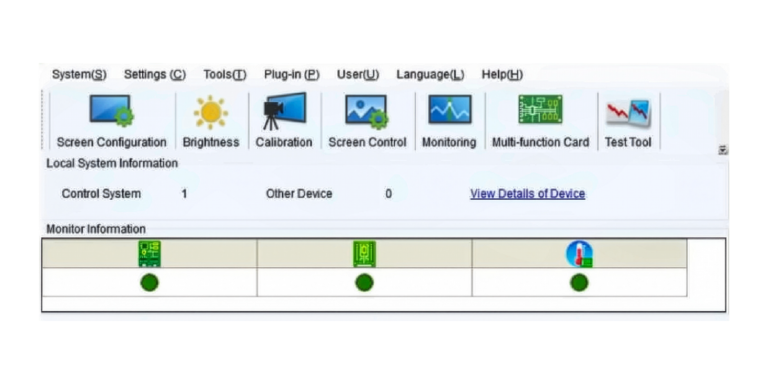
If manual configuration is required, click Screen Configuration, select the correct communication port, choose Configure Screen, and click Next.
In the Sending Card tab:
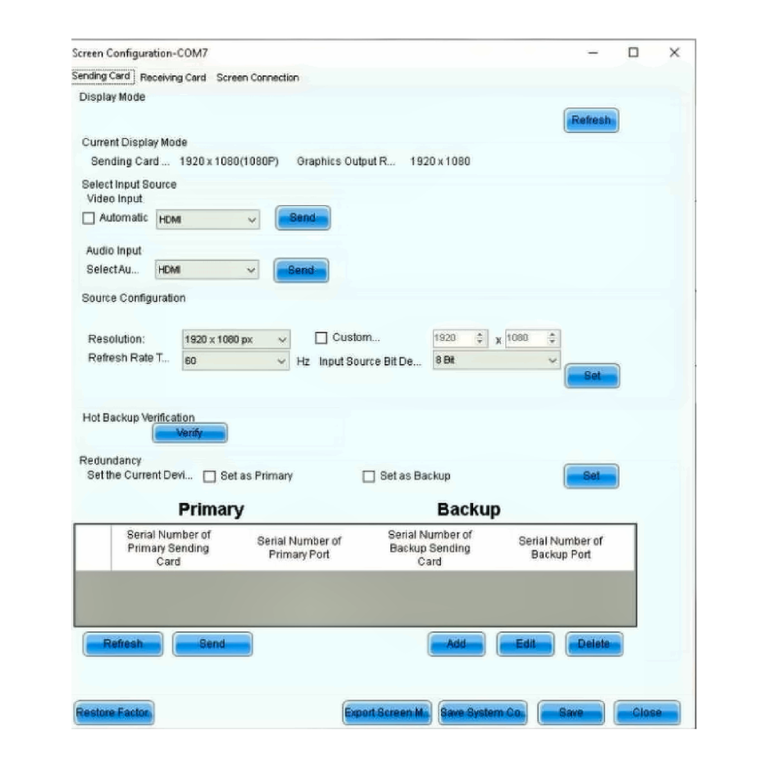
- Check the current display mode.
- Select the video input source, for example HDMI.
- Click Send to send the input source selection to the hardware.
- Set the required resolution.
- Set the refresh rate.
- Keep Input Source Bit Depth set to 8 bit.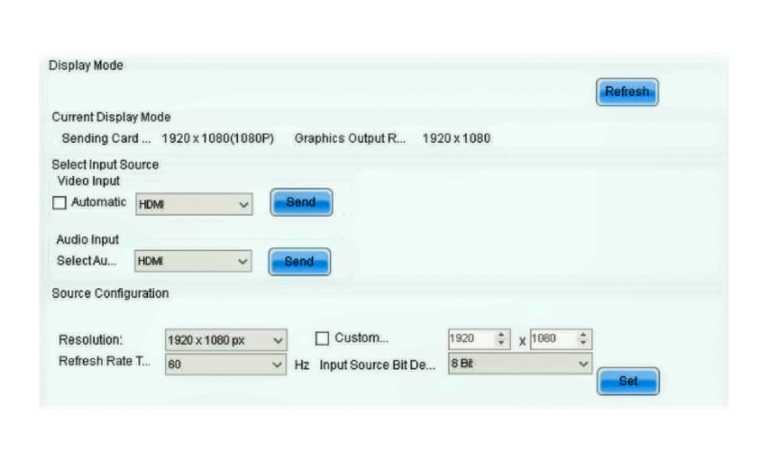
- Click Set, then click Refresh to confirm the source settings.
Step 4 — Configure the Screen Connection
Open the Screen Connection tab.
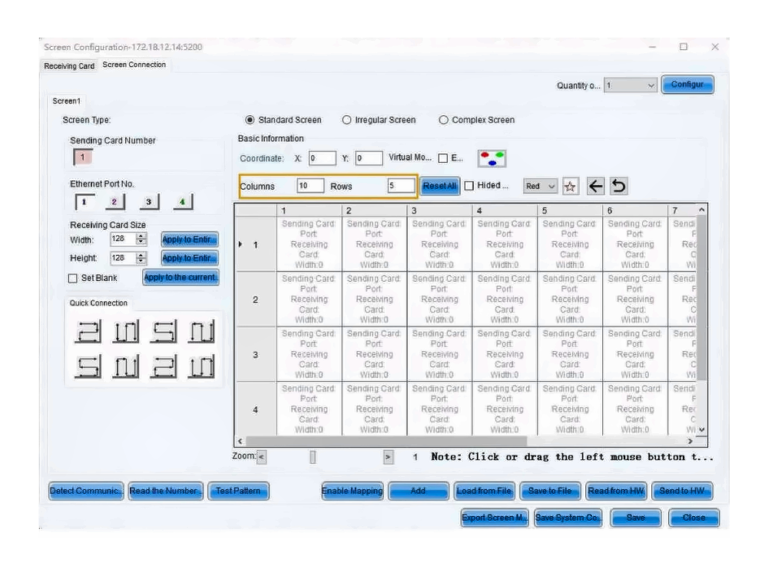
Set the number of displays, then define the number of receiving card columns and rows. Select the Ethernet output port used on the sending card.
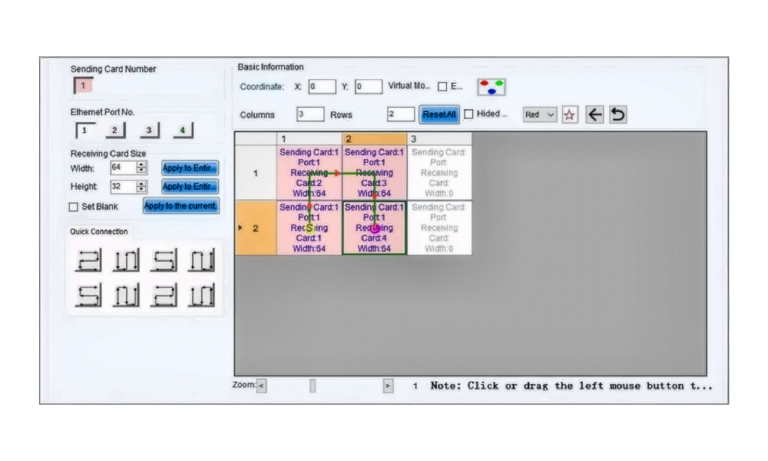
Set the load width and load height for each receiving card. Then click or drag the receiving cards in the table according to the real data cabling order between cabinets. The mapping must match the physical signal direction of the installation.
Step 5 — Send and Save the Configuration
After the sending card and receiving card mapping are correct, click Send to HW.
Verify that the image displays correctly across the full screen. Check that the image order, orientation, resolution, and cabinet alignment are correct.
Once the display is correct, click Save or Cure, depending on the NovaLCT screen, to store the configuration in the hardware memory for future use.
7.5 Image Verification and Alignment
Display a full-screen test pattern.
Verify correct image distribution across all cabinets.
Check alignment between units (no visible shifts or gaps).
Confirm uniform brightness and color consistency.
7.6 Final Setup Validation
Run a video playback test.
Confirm signal stability across all connected cabinets.
Ensure no flickering, tearing, or missing sections.
Verify that all cabinets respond consistently.
08 Operation
8.1 Normal Operating Conditions
For optimal performance, ensure the system operates within the recommended conditions:
Stable power supply within the specified voltage range (
AC 100–240V).Ambient temperature within −20 °C to +50 °C.
Humidity within 10% to 90%.
Adequate ventilation around the cabinets.
Protection from direct water exposure (front IP65, back IP20 — indoor use only).
8.2 Power-On Procedure
Verify that all power and signal connections are properly installed.
Switch on the main power supply.
Turn on the Pad Link 2 cabinets.
Wait for automatic initialization to complete.
Confirm that the display is correctly showing content across all cabinets.
⚠ Avoid Rapid Power Cycling
Rapid repeated power cycling may affect internal components.
8.3 Content Playback
Content is displayed automatically based on the internal configuration.
Video or image playback is controlled via the connected media source or system input.
Ensure content resolution matches the native configuration for best quality:
P1.5: 320 x 1280 pixels per device
P1.9: 256 × 1024 pixels per device
P2.6: 192 × 768 pixels per device
Avoid sudden signal interruptions during playback.
8.4 Brightness and Display Adjustment
The Pad Link 2 supports brightness up to 1000 nits @ 5V, with 16-bit brightness control.
Adjust brightness levels to match ambient lighting conditions.
Reduce brightness in low-light environments to improve lifespan and viewer comfort.
Ensure uniform brightness across all connected cabinets.
Use preset modes if available for faster adjustment.
8.5 Operational Best Practices
Avoid leaving static images displayed for extended periods.
Schedule periodic breaks for long-duration operation when possible.
Monitor system temperature in continuous-use environments.
Keep ventilation paths unobstructed at all times.
8.6 Power-Off Procedure
Stop all content playback.
Turn off the Pad Link 2 cabinets.
Switch off the main power supply.
Confirm that all indicators are off before leaving the system unattended.
⚠ Always follow the correct shutdown sequence to prevent data or hardware issues.
09 Maintenance
9.1 General Maintenance Principles
Always disconnect power before performing maintenance.
Use only soft, non-abrasive tools and approved cleaning products.
Do not apply liquid directly onto LED surfaces or electronic components.
Maintenance must be performed by qualified personnel.
9.2 Front Maintenance Procedure
The Pad Link 2 features front-access maintenance, allowing module replacement without dismantling the structure.
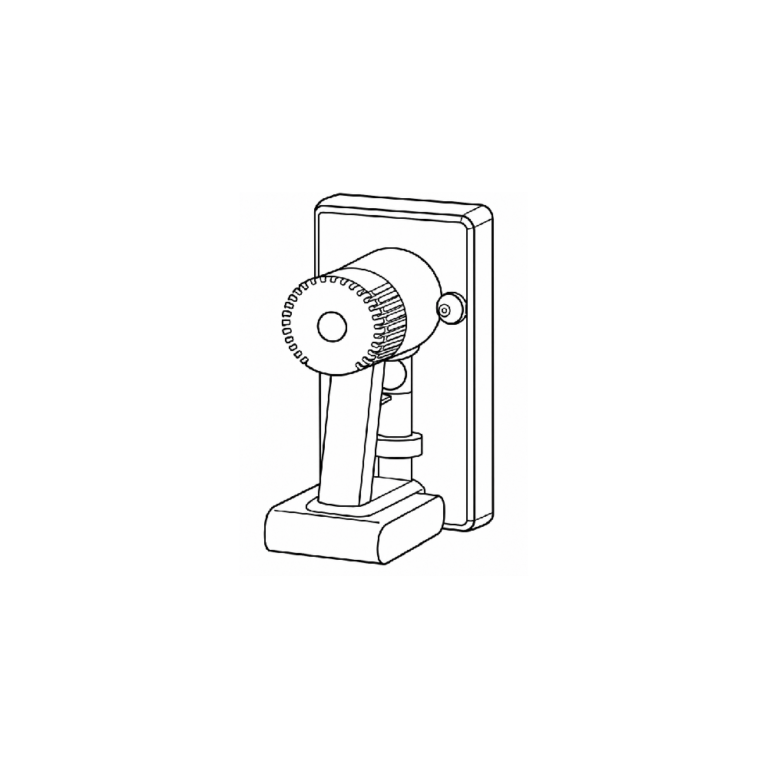
After powering on the front maintenance tool, align it with the exact centre of the module. After approximately 3 seconds, pull the module out perpendicular to its surface. If suction is insufficient, press the MAX button to engage maximum suction.
Catch the module with your hand, turn off the maintenance tool, and handle the module gently. Once removed, use a screwdriver to remove the fixing screws and access internal accessories such as the power supply, receiving card, and HUB board.
Handling Notes
During operation, hold the magnetic suction tool with your right hand and support the module with your left hand after it's pulled out, to prevent it from falling.
When reinstalling modules, ensure that the arrow on the back of the module aligns with the direction indicated on the HUB board.
9.3 Cleaning the LED Surface
Use a dry, anti-static microfiber cloth for light cleaning.
For deeper cleaning, use a slightly damp cloth with an approved cleaning solution.
Gently clean the LED surface without applying pressure.
Avoid sharp tools, alcohol-based solvents, or high-pressure air.
⚠ Improper cleaning may damage LED modules or affect color uniformity.
9.4 Cabinet and Structural Cleaning
Wipe cabinet frames regularly to remove dust accumulation.
Inspect mechanical joints and locking systems for debris.
Ensure wheels remain clean and free to move.
For rigged systems, check mounting points for dust or corrosion.
9.5 Electrical and Connection Inspection
Inspect power cables for wear, cuts, or overheating signs.
Verify that all connectors are firmly locked.
Check signal continuity between cabinets.
Ensure grounding remains intact and secure.
9.6 Module and Component Check
Look for dead pixels or abnormal color areas.
Ensure LED modules are properly seated and aligned.
Check for flickering or signal loss in specific sections.
Replace defective modules only with Artixium-approved parts.
9.7 Preventive Maintenance Schedule
Frequency | Action |
|---|---|
Daily / before use | Visual inspection of screen and cables |
Monthly | Cleaning and connection check |
Every 3–6 months | Detailed electrical and structural inspection |
Annually | Full system review by qualified technician |
9.8 Storage Conditions
The Pad Link 2 ships in dedicated flight cases designed to carry two folded units, ready to be deployed on site.
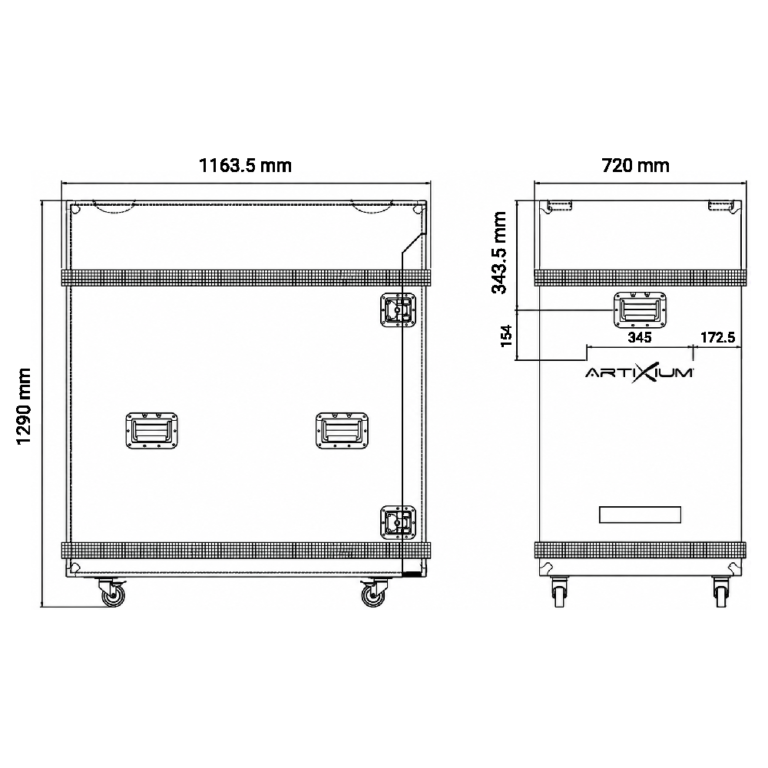
Store in a dry, temperature-controlled environment.
Use original packaging or protective flight cases.
Avoid stacking heavy objects on cabinets.
Disconnect and protect all cables and connectors.
An optional protective cover is available for additional protection against dust, scratches, and moisture.
Stacking Limit
The stacking height of plywood cases must not exceed three layers.
10 Troubleshooting
10.1 No Power or System Does Not Start
Check main power supply connection.
Verify circuit breakers and power distribution.
Ensure the power switch on the cabinet is ON.
Inspect power cables for damage.
10.2 No Image Display
Confirm the content source is active.
Check internal signal connection between cabinets.
Verify system initialization completed correctly.
Restart the system if necessary.
10.3 Partial or Missing Display Sections
Inspect the data connection between cabinets.
Verify correct cabinet order and linking.
Check for loose or damaged signal cables.
Restart system to reinitialize mapping.
10.4 Flickering or Signal Instability
Ensure stable power supply.
Check grounding quality.
Inspect signal cables for interference or damage.
Reduce cable length or improve routing if needed.
10.5 Color or Brightness Irregularities
Run uniformity or calibration mode if available.
Check LED modules for damage or aging.
Verify configuration consistency across cabinets.
11 RMA & Service
11.1 Reporting an Issue
Contact your Artixium representative.
Provide serial number and detailed issue description.
Include photos or videos when possible.
11.2 Return Authorization (RMA)
No product should be returned without RMA approval.
Once approved, you will receive return instructions.
Ensure proper packaging to avoid transport damage.
11.3 Repair Process
Units are inspected upon receipt.
Repair or replacement is carried out depending on diagnosis.
System is tested before return shipment.
11.4 Warranty Conditions
Customer Portal
You can submit RMA tickets and track their status through the Artixium Customer Portal.
12 Technical Specifications
Parameter | P1.9 | P2.6 |
|---|---|---|
Pixel pitch (mm) | 1.95 | 2.60 |
LED sealing type | SMD1212 | SMD1515 |
Pixel density (px/m²) | 262,144 | 147,456 |
Device pixel matrix (W × H) | 256 × 1024 | 192 × 768 |
Cabinet pixel matrix (W × H) | 256 × 512 | 192 × 384 |
Module pixel matrix (W × H) | 128 × 128 | 96 × 96 |
Application | Mobile indoor LED poster | |
Ingress protection | IP65 (front) / IP20 (back) | |
Brightness | ≤ 1000 nits @ 5V | |
Color temperature (adjustable) | 6000 K | |
Viewing angle | 160° H / 160° V | |
Device size (W × H × D) | 518 × 2140 × 588 mm | |
Display area (W × H) | 500 × 2000 mm | |
Cabinet size (W × H × D) | 500 × 1000 mm | |
Module size (W × H × D) | 250 × 250 mm | |
Device weight | 30 kg | |
Material | Die-casting aluminum | |
Maintenance mode | Front only | |
Mask specification | HOB (Hot Melt on Board) | |
Contrast ratio | High | |
Grey scale (linear) | 16-bit | |
Brightness control | 16-bit | |
Processing depth | 16-bit | |
Colors | 281 trillion | |
Refresh rate | 1920 – 3840 Hz | |
Operation power | AC 100–240 V | |
Max. power consumption / poster | 540 W | |
Avg. power consumption / poster | 180 W | |
Control mode | Synchronization | |
Video frame rate | 50 / 60 Hz | |
Input types supported | USB / HDMI / RJ45 / Wi-Fi / 4G | |
3D ready (optional) | Yes | |
Calibration | Yes | |
Lifetime (50% brightness) | 50,000 h | |
Operating humidity | 10 – 90% | |
Operating temperature | −20 °C / +50 °C | |
Compatibility | Several posters can be linked side by side | |
Certification | CE / ETL / CCC | |
13 Compliance & Warranty
13.1 Certifications
The Pad Link 2 complies with applicable international standards: CE, ETL, and CCC.
13.2 Warranty Coverage
Standard warranty period as defined by contract.
Covers manufacturing and component defects.
Requires proper installation and usage conditions.
13.3 Limitations
Warranty does not cover:
Improper installation or handling.
Unauthorized modifications.
Damage due to environmental exposure outside specifications.
Related articles
A10s Plus — Datasheet
Official NovaStar datasheet for the A10s Plus, in PDF format. Artixium supplies and configures this equipment with its LED displays.
A10s PRO — Datasheet
Official NovaStar datasheet for the A10s PRO, in PDF format. Artixium supplies and configures this equipment with its LED displays.
A4S — Datasheet
Official NovaStar datasheet for the A4S, in PDF format. Artixium supplies and configures this equipment with its LED displays.